Composite Application Validation System (CAVS) is part of the Application Integration Architecture Foundation Pack and with CAVS you can test your SOA Composites like SOAPUI or the SOA Test Suite. SOAPUI can test your composite services and it can mock an other service but you need to redeploy some composites to override the endpoints ( so it uses the mocked services endpoints ). The SOA Test Suite is also Ok but is focused to 1 composite. An AIA Process usually contains many composites. So for AIA you need a Test framework who can send a request and can simulate some Composite adapter references services and without redeploying any composites. CAVS can do this for you.
In every Application Business Connector Service (ABCS) of your AIA Process you can do a redirect to a simulator. In this blogpost I will show you how this works. I start with a simple test of a service, grouping some tests together, simulate a service and combine tests and simulators with CAVS routing.
First we start with a simple Test of a SOA Composite Service.
Go the AIA Homepage and press the go button in the Composite Application Validation System window.
Test definition
In the definitions tab you can see your already defined tests and simulators. Press the Create Test button.
Provide the details. Add the endpoint of the Service you want to test. With Get Operations you can select an operation. To generate a test message press Get Messages.
Add a request between the cavs:CAVSRequestInput_1 element, you can add more then one request. Add a cavs:CAVSRequestInput_2 element etc.
Provide the matching Response messages in the matching cavs:CAVSResponseOutput_X element.
Important press Generate Xpath so it will generate the validation rules for this test.
Provide all the namespaces you use in this test.
When you pressed Generate Xpath on the response window you can see all the validations rules ( these based on the response message) You can add your own.
You are ready to test your service. Select your test and press Execute.
In the instance tab you can see the result.
Group Definition
With a Group Definition you can combine test definitions to one group test
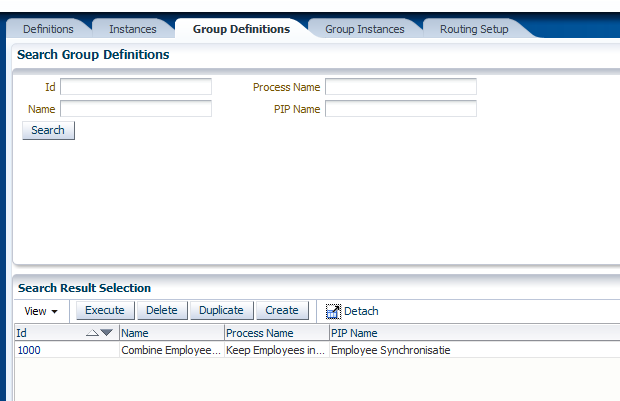
Assign some test defintions to this group definition.
You can execute the group definition and look at the instances tab for the results.
Simulation Definition
With a simulation you can for example emulate an reference adapter service of a Provider ABCS. To make an simulator go to the definition tab and press the create simulator button. Provide the values
Add the expected request messages you can receive in this simulator, start with cavs:CAVSRequestInput_1, you can add more expected messages use the right cavs:CAVSRequestInput_X element. Press Generate Xpath for the validation entries.
Provide the response messages of this simulator.
Provide the namespaces.
When you pressed Generate Xpath on the request messages then you will find some Xpath validation entries. Very important to provide the node key on every request message so CAVS can detect the right request message and give back the matching response. In my case 122 is the unique identifier.
The simulator part is finished, now you can assign this simulator to a ABCS.
When you create an ABCS with the JDeveloper AIA service constructor, it will create a AIAServiceConfigurationProperties.xml file. This file contains the endpoint url's and if it needs to route the reference to a CAVS simulator.
The AIA deployment framework will add this AIAServiceConfigurationProperties to the AIAConfigurationProperties.xml file ( located in AIA_Home\aia_instances\AIA_Instance\AIAMetaData\config )
and also located in the MDS in the config folder
To route every request to a simulator you need to go the AIA homepage and press the Go button of the setup window. Go the AIA Configuration Tab.
Press add on the ABCS you want to add a simulator to it and select a simulator
Enable the Route To CAVS option
When you open the AIAConfigurationProperties.xml you can see that the ABCS properties are changed
The changed ABCS entry.
The last part is to combine Testing and Simulation by making an Routing Setup.
Routing Setup
In a Routing Setup you can add particular simulation to one or more ABCS and use this in a test definition.
Create a Routing Setup
Add a simulator to the ABCS.
And open the Test definition and lookup the Routing Setup
This will set the simulator on the ABCS's before the test is executed.
That's all and hope this gives you a quickstart in the AIA CAVS tool.


