Pages

Showing posts with label Maven. Show all posts

Thursday, July 31, 2014

Test your Application with the WebLogic Maven plugin

In this blogpost I will show you how easy it is to add some unit tests to your application when you use Maven together with the 12.1.3 Oracle software ( like WebLogic , JDeveloper or Eclipse OEPE).

To demonstrate this, I will create a RESTful Person Service in JDeveloper 12.1.3 which will use the Maven project layout.

We will do the following:

Create a Project and Application based on a Maven Archetype.
Create a JAX-RS 2.0 Person Resource

In the Maven Test phase, we will test this Person Rest Service.
  • Use JerseyTest to test the Person Resource
  • Use JerseyTest and Mockito to test and mock the Person Rest Service.

In the Maven Integration Test phase, we will test the Person Resource on a WebLogic domain and run some external soupUI tests.

  • Create a WebLogic Domain
  • Start the AdminServer
  • Deploy the JAX-RS 2.0 shared library and our Person Rest Service
  • Run some soapUI test cases.
  • Remove the WebLogic domain.

Before we can start, we need to use oracle-maven-sync-12.1.3.jar plugin to populate our local or maven repository with all the Oracle binaries.

For more information how to do this you can take a look at one of the following links.


We start by creating a new application in JDeveloper 12.1.3


Go to the Maven tree and select Generate from Archetype.


 Provide the maven Group and Artifact id and lookup the basic-webservice Archetype.


When you search for webLogic you will find the basic web service archetypes. Make sure you select the 12.1.3 one.


This will create a Web Service Project but we also need to create an application. So the next step is the Application creation dialog.


Because we want to use JAX-RS and not JAX-WS, so we need to delete the SayHello web service.


Next step is adding the REST Web Service feature to this project. 


Create a RESTful Service class


Choose JAX-RS 2.0 Style


Choose RESTful Service From New


 Provide all the REST service details and enable application/json as Media Types.


And viola we got our Person RESTful Service.


JDeveloper will automatically add the JAX-RS 2.0 shared library to your project.


This finishes our basic service.

This is how the final Person service will look like.

We can now add some unit tests to the Maven Test phase. We will make 2 JUnit test cases where we will use JerseyTest, so we can test the Person Resource and one with Mockito so we can also mock the data of the Person Resource.

For these tests a lightweight grizzly2 HTTP container will be started by Maven.

The pom's dependency libraries which we will need.

Using only JerseyTest is probably not so meaningful because you probably also need an emulate your EJB's but here you have the JerseyTest snippet

And the JerseyTest with Mockito snippet.


We can now run mvn clean test


This is nice, but the next question is "Can we also run this Application on a WebLogic Container and do some external tests"

For this we can use the weblogic-maven-plugin in the integration-test Maven phase.
The WebLogic plugin can create a new WebLogic Domain, Start the AdminServer, Deploy the JAX-RS 2 shared library, our Application and off course stop the AdminServer and remove the domain.

In SoapUI 5.0 I made a Testcase for this Person REST Service and add the soapUI project xml to our JDeveloper project.


The Maven soapUI plugin , In my case I added the smartbear private repository to my own Nexus repository.

Now we can start maven with mvn clean deploy

Create a new WebLogic domain ( inside the maven target folder ),  deploy our application together with the shared library.


Start the soapUI testcases.
 

With this as result.


That's all.

You can find this demo project on github https://github.com/biemond/Person-Rest-MavenApp

Friday, July 26, 2013

Maven support in WebLogic & JDeveloper 12.1.2

In the 12.1.2 release of JDeveloper and WebLogic, Oracle really improved the support for Maven as build and provisioning tool. Oracle did this on multiple levels:

  • an Utility to synchronize all the Oracle Middleware jars to a local ( .m2/repository) or a shared repository like nexus or artifactory
  • ojmake maven plugin for just building JDeveloper projects.
  • Updated its Weblogic plugin for deploying artifacts or even creating new WebLogic domains, installing the WebLogic software or running WLST scripts.
  • Coherence plugin for packaging.
  • JDeveloper keeps its application & projects options in sync with the Maven application & projects poms. ( You don't need to lookup all the dependencies jars). 
To get started we need to do the following.

first step is to configure the local Maven settings.

I start with making a maven.sh script or put these variables in the .profile of your build user or set all the windows environments variables which should contain the java_home and set the maven home to the Oracle Middleware Maven home.


export JAVA_HOME=/Library/Java/JavaVirtualMachines/jdk1.7.0_21.jdk/Contents/Home/jre
export M2_HOME=/Users/edwin/Oracle/JDevMiddleware12.1.2/oracle_common/modules/org.apache.maven_3.0.4
export PATH=${M2_HOME}/bin:${JAVA_HOME}:$PATH

mvn -v 

We start by synchronizing the local or shared repository.

For this we  need to install a plugin and need to configure the Maven settings.xml which is default located in the .m2 folder of your user home. You can update or create a new settings.xml


When you only use a local repository which located in the .m2 folder we need to do the following steps


1) Install the oracle maven sync plugin to your local repository


cd $ORACLE_HOME/oracle_common/plugins/maven/com/oracle/maven/oracle-maven-sync/12.1.2
mvn deploy:deploy-file -DpomFile=oracle-maven-sync.12.1.2.pom -Dfile=oracle-maven-sync.12.1.2.jar


2) Configure the settings.xml, you need to add the following xml snippet to the settings.xml. This will set all the required maven sync plugin parameters.


 </profiles>
   <profile>
      <id>oracle-maven</id>
      <properties>
        <oracle-maven-sync.oracleHome>/Users/edwin/Oracle/JDevMiddleware12.1.2</oracle-maven-sync.oracleHome>
        <oracle-maven-sync.testOnly>false</oracle-maven-sync.testOnly>
        <oracle-maven-sync.failOnError>false</oracle-maven-sync.failOnError>
      </properties>      
    </profile>  
  </profiles>

  <activeProfiles>
     <activeProfile>oracle-maven</activeProfile>
  </activeProfiles>


3) Test the plugin 

mvn com.oracle.maven:oracle-maven-sync:help


You should see something like this 

When you use a shared Maven repository like nexus or artifactory you need to set this in the settings.xml

1) A Maven mirror with the address of your shared Maven repository and provide all the repositories with its passwords


  <servers>
    <server>
      <id>central</id>
      <username>admin</username>
      <password>password</password>
    </server>
    <server>
      <id>snapshots</id>
      <username>admin</username>
      <password>password</password>
    </server>
    <server>
      <id>artifactory</id>
      <username>admin</username>
      <password>password</password>
    </server>
    <server>
      <id>internal</id>
      <username>admin</username>
      <password>password</password>
    </server>
  </servers>

  <mirrors>
    <mirror>
      <id>artifactory</id>
      <name>Internal artifactory Mirror of Central</name>
      <url>http://hudson:8081/artifactory/repo</url>
      <mirrorOf>*</mirrorOf>
    </mirror>
    
  </mirrors>
  
  <profiles>

    <profile>
      <id>artifactory</id>
      <repositories>
        <repository>
          <snapshots>
            <enabled>false</enabled>
          </snapshots>
          <id>central</id>
          <name>libs-release</name>
          <url>http://hudson:8081/artifactory/libs-release</url>
        </repository>
        <repository>
          <snapshots />
          <id>snapshots</id>
          <name>libs-snapshot</name>
          <url>http://hudson:8081/artifactory/libs-snapshot</url>
        </repository>
        <repository>
          <snapshots />
          <id>internal</id>
          <name>libs-snapshot</name>
          <url>http://hudson:8081/artifactory/ext-release-local</url>
        </repository>
      </repositories>
      <pluginRepositories>
        <pluginRepository>
          <snapshots>
            <enabled>false</enabled>
          </snapshots>
          <id>central</id>
          <name>plugins-release</name>
          <url>http://hudson:8081/artifactory/plugins-release</url>
        </pluginRepository>
        <pluginRepository>
          <snapshots />
          <id>snapshots</id>
          <name>plugins-snapshot</name>
          <url>http://hudson:8081/artifactory/plugins-snapshot</url>
        </pluginRepository>
      </pluginRepositories>
    </profile>

    <profile>
      <id>oracle-maven</id>
      <properties>
        <oracle-maven-sync.serverId>internal</oracle-maven-sync.serverId>
        <oracle-maven-sync.oracleHome>/Users/edwin/Oracle/JDevMiddleware12.1.2</oracle-maven-sync.oracleHome>
        <oracle-maven-sync.testOnly>false</oracle-maven-sync.testOnly>
        <oracle-maven-sync.failOnError>false</oracle-maven-sync.failOnError>
      </properties>      
    </profile>  
    
  </profiles>
    
  <activeProfiles>
     <activeProfile>artifactory</activeProfile>
     <activeProfile>oracle-maven</activeProfile>
  </activeProfiles>


2) Now we can install the sync plugin 


cd $ORACLE_HOME/oracle_common/plugins/maven/com/oracle/maven/oracle-maven-sync/12.1.2
mvn deploy:deploy-file -DpomFile=oracle-maven-sync.12.1.2.pom -Dfile=oracle-maven-sync.12.1.2.jar -Durl=http://hudson:8081/artifactory/ext-release-local -DrepositoryId=artifactory


3) Test the plugin 


mvn com.oracle.maven:oracle-maven-sync:help


The next step is to synchronize the Oracle Middleware home with the local or shared Maven repository

mvn com.oracle.maven:oracle-maven-sync:push

Update the maven catalog

mvn archetype:crawl -Dcatalog=$HOME/.m2/archetype-catalog.xml

With as result. 


We are ready to create some JDeveloper projects with Maven as build tool

JDeveloper keeps the libraries in sync with the project libraries and the pom dependencies.


Also you can add a separate JUnit Test project to this pom, it will do all your unit tests and keeps the code outside your project.


Default this test project should contain JUnit 3 code ( no annotations ) else no test will be executed ( be aware of the Java Class Naming conventions ) .

For JUnit 4 tests you should add the JUnit 4 dependency to the pom.


We can also use the maven plugin to do WebLogic actions like appc, create-domain, deploy, distribute-app, install, list-apps, redeploy, start-app, start-server, stop-app, stop-server, undeploy, uninstall, update-app, wlst, ws-clientgen,ws-wsdlc, ws-jwsc

for more information see this Oracle documentation


Tuesday, April 30, 2013

Offline Oracle Service Bus Configuration export

With Oracle Service Bus PS6 or 11.1.1.7 we finally have an new offline build tool with does not require Eclipse (OEPE).  With this OSB configjar tool ( located in the OSB home /tools/configjar/ folder ) you can make OSB export sbconfig jar based on 1 or more OSB projects or even with more then one OSB Configuration projects. Plus have total control what to include or exclude.

In this blogpost I will show you first, how to do this in a shell script with I run on a linux server and the second part how to do the same with maven.

all demo code is available at github and contains a demo OSB workspace.

First step is to create an configuration setting xml with will be used by the configjar utility

here is an example of a OSB workspace configuration file with all its project and resources

<configjarSettings xmlns="http://www.bea.com/alsb/tools/configjar/config">
    <source>
        <project dir="/home/oracle/projects/soa_tools/maven_osb_ps6_tool/source/ReliableMessageWS"/>
        <project dir="/home/oracle/projects/soa_tools/maven_osb_ps6_tool/source/XSDvalidation"/>
        <system  dir="/home/oracle/projects/soa_tools/maven_osb_ps6_tool/source/OSB Configuration"/>
    </source>

    <configjar jar="/home/oracle/projects/soa_tools/maven_osb_ps6_tool/export/sbconfig-resources.jar">
         <projectLevel includeSystem="true"/>
    </configjar>
    
</configjarSettings>


and in this case only one project and an separate export for particular system resource

<configjarSettings xmlns="http://www.bea.com/alsb/tools/configjar/config">
    <source>
        <project dir="/home/oracle/projects/soa_tools/maven_osb_ps6_tool/source/ReliableMessageWS"/>
        <system  dir="/home/oracle/projects/soa_tools/maven_osb_ps6_tool/source/OSB Configuration"/>
    </source>
    <configjar jar="/home/oracle/projects/soa_tools/maven_osb_ps6_tool/export/sbconfig-rel.jar">
        <projectLevel includeSystem="false"/>
    </configjar>
    <configjar jar="/home/oracle/projects/soa_tools/maven_osb_ps6_tool/export/sbconfig-rel-system.jar">
         <resourceLevel>
            <resources>
                <include name="**/*.jndi"/>
            </resources>
        </resourceLevel>
    </configjar>
</configjarSettings>


To see all the possible options see this Oracle document page

Next step is to use this setting xml in our shell script.


That's all, this will generate the sbconfig jars but we can also do the same with maven.

The rest of the blog will describe the maven build and deploy.

First we also need to have a setting xml which will be used by maven. The OSB setting file does not support environment variables so I need to use the com.google.code.maven-replacer-plugin maven plugin to replace the tokens.

This is the workspace setting xml ( located in the OSB workspace folder)

<configjarSettings xmlns="http://www.bea.com/alsb/tools/configjar/config">
    <source>
        <project dir="$WORKSPACE_HOME$/ReliableMessageWS"/>
        <project dir="$WORKSPACE_HOME$/XSDvalidation"/>
        <system  dir="$WORKSPACE_HOME$/OSB Configuration"/>
    </source>

    <configjar jar="$BUILDDIR$/$ARTIFACTID$-$VERSION$.jar">
         <projectLevel includeSystem="$OSBINCLUDESYSTEM$"/>
    </configjar>
    
</configjarSettings>


This is de project setting xml ( located in the OSB project folder)

<configjarSettings xmlns="http://www.bea.com/alsb/tools/configjar/config">
    <source>
        <project dir="$WORKSPACE_HOME$/ReliableMessageWS"/>
        <system  dir="$WORKSPACE_HOME$/OSB Configuration"/>
    </source>
    <configjar jar="$BUILDDIR$/$ARTIFACTID$-$VERSION$.jar">
         <projectLevel includeSystem="$OSBINCLUDESYSTEM$"/>
    </configjar>
</configjarSettings>

The workspace pom  ( located in the OSB workspace folder) , where the path to parent pom is different and the target folder

<project xmlns="http://maven.apache.org/POM/4.0.0" xmlns:xsi="http://www.w3.org/2001/XMLSchema-instance" xsi:schemaLocation="http://maven.apache.org/POM/4.0.0 http://maven.apache.org/maven-v4_0_0.xsd">
  <modelVersion>4.0.0</modelVersion>
  <parent>
    <groupId>biemond.core.osb</groupId>
    <artifactId>tool</artifactId>
    <version>1.0</version>
    <relativePath>../parent/pom.xml</relativePath>
  </parent>
  <groupId>biemond</groupId>
  <artifactId>osb.source</artifactId>
  <version>1.5.1-SNAPSHOT</version>
  <properties>
    <project.build.sourceEncoding>UTF-8</project.build.sourceEncoding>
    <project.reporting.outputEncoding>UTF-8</project.reporting.outputEncoding>    
    <buildDirectory>${project.basedir}/../target</buildDirectory>
    <buildOsbBase>${project.basedir}/../</buildOsbBase>
    <osbProjectBase>${project.basedir}</osbProjectBase>
    <osbIncludeSystem>true</osbIncludeSystem>
  </properties>
  <scm>
    <connection>scm:git:git@github.com:biemond/soa_tools.git</connection>
    <developerConnection>scm:git:git@github.com:biemond/soa_tools.git</developerConnection>
    <url>https://github.com/biemond/soa_tools/tree/master/maven_osb_ps6_tool</url>
    <tag>osb.source-1.3.3</tag>
  </scm>  
</project>

The OSB project pom ( located in the OSB project folder) , this one is level deeper then the workspace pom.

<project xmlns="http://maven.apache.org/POM/4.0.0" xmlns:xsi="http://www.w3.org/2001/XMLSchema-instance" xsi:schemaLocation="http://maven.apache.org/POM/4.0.0 http://maven.apache.org/maven-v4_0_0.xsd">
  <modelVersion>4.0.0</modelVersion>
  <parent>
    <groupId>biemond.core.osb</groupId>
    <artifactId>tool</artifactId>
    <version>1.0</version>
    <relativePath>../../parent/pom.xml</relativePath>
  </parent>
  <groupId>biemond</groupId>
  <artifactId>osb.source.reliablemessagews</artifactId>
  <version>1.4.0-SNAPSHOT</version>

  <properties>
    <project.build.sourceEncoding>UTF-8</project.build.sourceEncoding>
    <project.reporting.outputEncoding>UTF-8</project.reporting.outputEncoding>    
    <buildDirectory>${project.basedir}/../../target</buildDirectory>
    <buildOsbBase>${project.basedir}/../../</buildOsbBase>
    <osbProjectBase>${project.basedir}/../</osbProjectBase>
    <osbIncludeSystem>true</osbIncludeSystem>
  </properties>

  <scm>
    <connection>scm:git:git@github.com:biemond/soa_tools.git</connection>
    <developerConnection>scm:git:git@github.com:biemond/soa_tools.git</developerConnection>
    <url>https://github.com/biemond/soa_tools/tree/master/maven_osb_ps6_tool</url>
    <tag>HEAD</tag>
  </scm>  

</project>


Here is the parent pom with the prepare package phase to replace the tokens in the osb setting file, package for making a sbconfig jar and the deploy phase which use the WLST import.py script to deploy it to the server.


Last step is to add some variables to the maven settings.xml, which contains all the WebLogic and OSB variables


At last we can generate some artifacts.

. osb.sh ( sets maven, java environment variables )

mvn package, builds all or 1 project depends on the location in the source folder ( OEPE Workspace )

mvn deploy -Dtarget-env=dev-osb, deploy to the dev OSB server

mvn release:prepare, prepare a release

mvn release:perform -Dtarget-env=dev-osb -DconnectionUrl=scm:git:git@github.com:biemond/soa_tools.git

Here is the url of the demo workspace on github

Sunday, October 7, 2012

Build and Deploy OSB projects with Maven

2 years ago I already did the same with ANT and now I migrated these scripts to Maven. These Maven poms can still do the same like my ANT scripts.
  • Build and deploy an OSB OEPE workplace
  • Build one OSB project.
  • Export OSB projects from an OSB server and generate a customization plan.
Here you can find my code https://github.com/biemond/soa_tools/tree/master/maven_osb_ps5 or the PS6 version https://github.com/biemond/soa_tools/tree/master/maven_osb_ps6
or with the new PS6 configjar tool which can create offline OSB exports without OEPE http://biemond.blogspot.nl/2013/04/offline-oracle-service-bus.html 

Also the readme contains some examples how to this from Java without the help of Maven or Ant.

I based my scripts on the following software and folders

My Environment Oracle OSB PS5 or 11.1.1.6 with Maven 3.0.4

JVM                         = JDK 1.7_07 x64
Middleware home      = /opt/oracle/wls/wls11g
OSB & Oracle home = /opt/oracle/wls/wls11g/Oracle_OSB1
WebLogic home       = /opt/oracle/wls/wls11g/wlserver_10.3
Oepe home               = /opt/oracle/wls/wls11g/oepe11.1.1.8

My Maven settings.xml


run . osb.sh to set all the Maven, Java variables.

To build a project or the whole OEPE workspace use this
mvn package

To deploy or export an existing OSB server use this target-env=dev so it uses the right Maven profile for the WebLogic Settings
mvn deploy -Dtarget-env=dev

Prepare a release
mvn release:prepare

Perform a release
mvn release:perform -Dtarget-env=dev 
-DconnectionUrl=scm:git:git@github.com:biemond/soa_tools.git


the pom.xml in the Maven_osb_ps5 folder build the whole source folder workspace, this generates a jar in the export folder with the same name as your pom definition.

the pom.xml in the Maven_osb_ps5/source/ReliableMessageWS and Maven_osb_ps5/source/XSDvalidation folder build only this project and generate a jar in the export folder with the same name as your pom definition.

the pom.xml in the Maven_osb_ps5/export folder export everything from the OSB server and puts the jar in the import folder.

Here is an example of a pom which build and deploys the whole OSB OEPE workspace.
This pom has the following plugins

  • exec-maven-plugin for building the OSB jar and deploy the jar to the OSB server, 
  • maven-assembly-plugin for adding the OSB jar as maven artifact 
  • maven-release-plugin for OSB releases. 

And here the assembly to add the generated OSB jar to Maven artifact

Monday, June 13, 2011

Building with Maven in JDeveloper 11gR2

With JDeveloper 11gR2 you can use Maven 2 as your build engine, before 11gR2 you could download a plugin which did not work great because all the required Oracle libraries which were not available in a public repository. So you had no choice to add them manually to a Maven Repository before you can use Maven. With 11gR2 Oracle fixed that by adding your projects libraries to the local Maven Repository when you add a Pom.xml to your projects.

Using Maven in JDeveloper is not that simple and I hope that this blogpost can help you to use maven as your buidtool.

First check if you have in your user profile a folder called .m2 . This folder must contain a settings.xml file ( you can copy it from jdeveloper\apache-maven-2.2.1\conf ) And also add a sub folder called repository.


Select for example your model project and add a Maven POM for Project to this project


You will get a POM overview which matches with your project.


This will add the libraries of the model project to your local Maven repository.


Now you can do the same for the ViewController project.


The only thing missing is the application workspace POM.xml which build all workspace projects. Add the Application POM to your workspace.


Don't enable Generate POM for Projects in this Application because we already did that.


This Application POM is located in the Application Resources window and only contains the Model and ViewController references,

In the project options or when you select the POM.xml you can change the Maven settings


Add some extra Maven goals to your project.


or add some extra Maven Repositories, like your company one.


Too bad indexing the Maven repositories ends in a error. Even when I use my own repository. You can ignore this error.

This is fixed in the 11gR2 patch and now it is working fine.

Now its time to build your project by running the Maven Package Goal.

The Model project was no problem.

The ViewControler project was different.

First I got a Apacle Trinidad error ( the ADF Faces Runtime needs a Trinidad pom )
Cannot find parent: org.apache.myfaces.trinidad:trinidad for project: null:trinidad-api:jar:null for project null:trinidad-api:jar:null

You can try to add and remove the right dependency  ( oracle.jdeveloper.library:ADF-Faces-Runtime-11:pom:11.1.2.0.0 ), maybe this will fix it.

This is fixed in the 11gR2 patch and now it is working fine.

In the Maven setting you can Add or Remove the library dependency.


You will get a message that the local repository will be updated.


In case of the Apache Trinidad error. I need to update the trinidad pom in my local repository and remove the  missing parent and move the groupId and version element,

This is fixed in the 11gR2 patch and now it is working fine.
<!--
  <parent>
    <groupId>org.apache.myfaces.trinidad</groupId>
    <artifactId>trinidad</artifactId>
    <version>2.0.0.1-SNAPSHOT</version>
  </parent>
-->
  <groupId>org.apache.myfaces.trinidad</groupId>
  <version>2.0.0.1-SNAPSHOT</version>
  <artifactId>trinidad-impl</artifactId>
  <packaging>jar</packaging>

and so it goes on and on. Also need to do this for the 2 RichClient Faces POMs located in .m2\repository\oracle\adf\view\faces
Somehow the parent POM of the Oracle and Apache POMs are not added to  the local repository.

And it would be great if Oracle made a option to force the synchronization of all the Jdeveloper libraries ( disc  space is not a problem anymore and make it complete )  and even a option to export these POMs to your own Maven Repository.

The ViewController project has a dependecy with the model project so you need to make sure that the ViewController project can find the Model jar. To do so I will add my own Maven Repository to all the projects.


Change the Settings.xml of Apache Maven or of your local Maven repository and the add the username password which can upload the model artifact.

In the Model POM add a Distribution so Maven can upload the model artifact.

The ViewController can now find the Model dependency and you can create the WAR. This is a big one (130) because it adds all the reference jar to the web-inf/lib. You need to control this by deselecting the export option in the Maven project dependency.

To solve the Apache Trinidad dependency you need to add the Apache repository on the ViewController maven repositories. Add https://repository.apache.org/content/repositories/snapshots/ as url
Open the ADF-Faces-Runtime-11-11.1.2.0.0.pom located in .m2\repository\oracle\jdeveloper\library\ADF-Faces-Runtime-11\11.1.2.0.0\ and change the Trinidad dependency from 2.0.0.1-SNAPSHOT to 2.0.0.3-SNAPSHOT
The 2.0.0.1-SNAPSHOT does not exists in the Apache repository anymore.

This is fixed in the 11gR2 patch and now it is working fine.


Do the same for Trinidad-Runtime-11-11.1.2.0.0.pom  located at .m2\repository\oracle\jdeveloper\library\Trinidad-Runtime-11\11.1.2.0.0

This is fixed in the 11gR2 patch and now it is working fine.


Also got a Maven Package Goal error when I run this Package Goal twice. It is solved when I do a clean first.
Cannot construct org.apache.maven.plugin.war.util.WebappStructure as it does not have a no-args constructor

message             : Cannot construct org.apache.maven.plugin.war.util.WebappStructure as it does not have a no-args constructor
cause-exception     : com.thoughtworks.xstream.converters.reflection.ObjectAccessException
cause-message       : Cannot construct org.apache.maven.plugin.war.util.WebappStructure as it does not have a no-args constructor
class               : org.apache.maven.plugin.war.util.WebappStructure
required-type       : org.apache.maven.plugin.war.util.WebappStructure
path                : /webapp-structure
line number         : 1

Tuesday, May 25, 2010

Deploy to Weblogic with Maven

For JDeveloper 11g you can now download a Maven plugin which helps you to make a new project which follows the Maven project folders lay-out and also creates the pom.xml. For more information about this plugin and how it works in JDeveloper see this OTN article of Dana Singleterry.
The next step in this Maven tutorial is to deploy to a Weblogic Server from Maven. To make this work you need to have a Maven Repository, where you can upload the required weblogic jars. In this blogpost I use Artifactory of JFrog. Download the standalone zip and start the Maven repository.
I don't want to upload a lot of Weblogic jars to this repository, so I will generate a Weblogic FullClient jar and use this instead.
Go to the wlserver_10.3\server\lib folder and start java -jar wljarbuilder.jar this will generate a new jar called wlfullclient.jar

Go to the artifactory Web Application, in my case http://localhost:8081/artifactory/webapp/home.html where you need to log in to upload the new jars. Use admin / password as username and password.
In the Deploy Tab you can upload this wlfullclient.jar
Change GroupId & ArtifactId to weblogic and version to 10.3.3
Do the same for the webservices.jar also located in wlserver_10.3\server\lib. Change GroupId to weblogic and version to 10.3.3

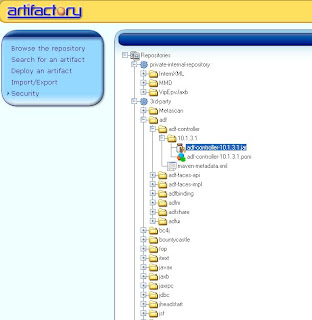
When you take a look at the Repository Browser you need to see this.


The next step is to configure the Maven settings.xml Here you need to add a server configuration, a development profile and make this profile active.

The server entry is needed to successful upload your project snapshot to the repository ( distributionManagement in the project pom) and the dev profile is used for the Development Weblogic Server properties and to define the Maven repositories.
<?xml version="1.0" encoding="UTF-8"?>
<settings xmlns="http://maven.apache.org/SETTINGS/1.0.0"
          xmlns:xsi="http://www.w3.org/2001/XMLSchema-instance"
          xsi:schemaLocation="http://maven.apache.org/SETTINGS/1.0.0 http://maven.apache.org/xsd/settings-1.0.0.xsd">

  <servers>
    <server>
       <id>LAPTOPEDWIN</id>
       <username>admin</username>
       <password>password</password>
    </server>
  </servers>

  <profiles>
      <profile>
            <id>dev</id>
            <properties>
                <weblogic.version>10.3.3</weblogic.version>
                <wls.adminServerHostName>laptopedwin</wls.adminServerHostName>
                <wls.adminServerPort>7101</wls.adminServerPort>
                <wls.userId>weblogic</wls.userId>
                <wls.password>weblogic1</wls.password>
            </properties>
            <repositories>
                  <repository>
                        <id>central</id>
                        <url>http://localhost:8081/artifactory/repo</url>
                        <snapshots>
                              <enabled>false</enabled>
                        </snapshots>
                  </repository>
                  <repository>
                        <id>snapshots</id>
                        <url>http://localhost:8081/artifactory/repo</url>
                        <releases>
                              <enabled>false</enabled>
                        </releases>
                  </repository>
            </repositories>
            <pluginRepositories>
                  <pluginRepository>
                        <id>central</id>
                        <url>http://localhost:8081/artifactory/repo</url>
                        <snapshots>
                              <enabled>true</enabled>
                        </snapshots>
                  </pluginRepository>
                  <pluginRepository>
                        <id>snapshots</id>
                        <url>http://localhost:8081/artifactory/repo</url>
                        <releases>
                              <enabled>true</enabled>
                        </releases>
                  </pluginRepository>
             </pluginRepositories>
      </profile>
  </profiles>


  <activeProfiles>
    <activeProfile>dev</activeProfile>
  </activeProfiles>

</settings
The project pom with the weblogic-maven-plugin. This plugin uses the weblogic properties of the dev profile and has the two weblogic jars as dependency. For deploy you need to configure distributionManagement, Maven will upload the snapshot to the artifactory repository.
<?xml version="1.0" encoding="windows-1252" ?>
<project xmlns="http://maven.apache.org/POM/4.0.0">
        <modelVersion>4.0.0</modelVersion>
        <groupId>nl.whitehorses.maven</groupId>
        <artifactId>test.jpr</artifactId>
        <version>1.0-SNAPSHOT</version>
        <packaging>war</packaging>
        <build>
                <plugins>
                        <plugin>
                                <groupId>org.codehaus.mojo</groupId>
                                <artifactId>weblogic-maven-plugin</artifactId>
                                <version>2.9.1</version>
                                <executions>
                                        <execution>
                                                <phase>deploy</phase>
                                                <goals>
                                                        <goal>deploy</goal>
                                                        <goal>start</goal>
                                                </goals>
                                        </execution>
                                </executions>
                                <configuration>
                                        <name>test</name>
                                        <adminServerHostName>${wls.adminServerHostName}</adminServerHostName>
                                        <adminServerPort>${wls.adminServerPort}</adminServerPort>
                                        <adminServerProtocol>t3</adminServerProtocol>
                                        <userId>${wls.userId}</userId>
                                        <password>${wls.password}</password>
                                        <upload>true</upload>
                                        <remote>true</remote>
                                        <verbose>true</verbose>
                                        <debug>true</debug>
                                        <targetNames>DefaultServer</targetNames>
                                        <noExit>true</noExit>
                                </configuration>
                                <dependencies>
                                        <dependency>
                                                <groupId>weblogic</groupId>
                                                <artifactId>weblogic</artifactId>
                                                <version>10.3.3</version>
                                                <scope>provided</scope>
                                        </dependency>
                                        <dependency>
                                                <groupId>weblogic</groupId>
                                                <artifactId>webservices</artifactId>
                                                <version>10.3.3</version>
                                                <scope>provided</scope>
                                        </dependency>
                                </dependencies>
                        </plugin>
                        <plugin>
                                <groupId>org.apache.maven.plugins</groupId>
                                <artifactId>maven-compiler-plugin</artifactId>
                                <version>2.0.2</version>
                                <configuration>
                                        <source>1.6</source>
                                        <target>1.6</target>
                                </configuration>
                        </plugin>
                        <plugin>
                                <groupId>org.apache.maven.plugins</groupId>
                                <artifactId>maven-war-plugin</artifactId>
                                <version>2.1-alpha-2</version>
                                <configuration>
                                        <webappDirectory>public_html/</webappDirectory>
                                </configuration>
                        </plugin>
                </plugins>
        </build>
        <distributionManagement>
                <repository>
                        <id>LAPTOPEDWIN</id>
                        <name>LAPTOPEDWIN-releases</name>
                        <url>http://localhost:8081/artifactory/ext-releases-local</url>
                </repository>
                <snapshotRepository>
                        <id>LAPTOPEDWIN</id>
                        <name>LAPTOPEDWIN-snapshots</name>
                        <url>http://localhost:8081/artifactory/ext-snapshots-local</url>
                </snapshotRepository>
        </distributionManagement>
</project>
Now you can use mvn deploy and this will deploy your project to the Weblogic Application server. ( when it fails on Windows with a strange Mbean error then this can be caused by, you are using a space in the local repository path ).

Thursday, November 8, 2007

JDeveloper project with Maven / Continuum

If you work on jdeveloper project in teams then you probably experienced that someone checked in bad code or not all the code so the next day nobody can compile the project. Then it is necessary to have a continious build tool and it also does unit tests on the code so you can pro-active react. These build are all open source so it can't be the money if you don't use it in your projects.

The first step to have a maven repository. This stores the javax and oracle jars which are needed for compilation, You have to upload the needed jars into the repos. the others non commercial jars are downloaded automaticaly from public repositories and stored in the local repos. For a good description how to setup a repository see this guide on the theserverside. I use artifactory.


If you work in teams I think you already have subversion or cvs. This is necessary so maven can check out the code every X minutes for a complete rebuild.

Let's download maven

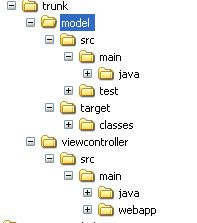
Now we are ready to setup a jdeveloper project . Maven needs a typical structure for a normal project and a webapp project. see the picture below. So you need to change the jdeveloper projects to this directory structure.

You also can do the other way around, make the directory structure, put in your code. Let maven compile the workspace and the download a maven plugin from some adf faces developers. And let this plugin generate jpr files. check out with subversion this url http://svn.apache.org/repos/asf/myfaces/trinidad-maven/trunk/maven-jdev-plugin for the plugin
Let's make a trunc folder with a model and viewcontroller subfolders. In the model we have a src folder with two subfolder main and test. In main\java you put in your java and xml's and in test your unit tests. The viewcontroller structure is a bit different you have here a webapp folder in src/main.

Now we ready the make the maven pom files. The first we make is the main pom where we put in the order of compiling the sub projects and shared used jar files. This pom.xml is located in the trunk directory


Here you see we have two projects model and view controller and one shared jar.
the model pom is a bit different and is located in the model folder


Here you have extra configuration elements for the issue management , in this case I use jira . If the build fails it makes a issue to the developer in jira . The second is subversion scm connection to check out the model code. The third is the continuum configuration who is has to email if there are changes in the build proces.
The build configuration is very import for adf bc ( bc4j) projects because the xml files are very important.


The viewcontroller pom looks like this


Dependency is now the model project


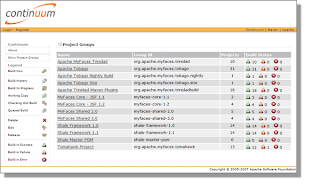
Now we can build the application in maven. the last step is installing continuum where we can load the main pom.xml and we now can configure when and how often it has to build .We also get a total overview about over build projects.